
Wix Blog
Connect your Wix site to RankPine with an API key. Set up native Wix Blog publishing, choose your post settings, and troubleshoot common connection errors.
RankPine connects directly to Wix's REST API. You provide a Wix Site ID and a site-restricted API key; there is no Wix app installation, Wix App Market listing, or Wix-managed subscription.
Wix Blog is required
Add Wix Blog to the site before connecting. A Wix website without the Blog app cannot accept Blog draft posts.
Before you start
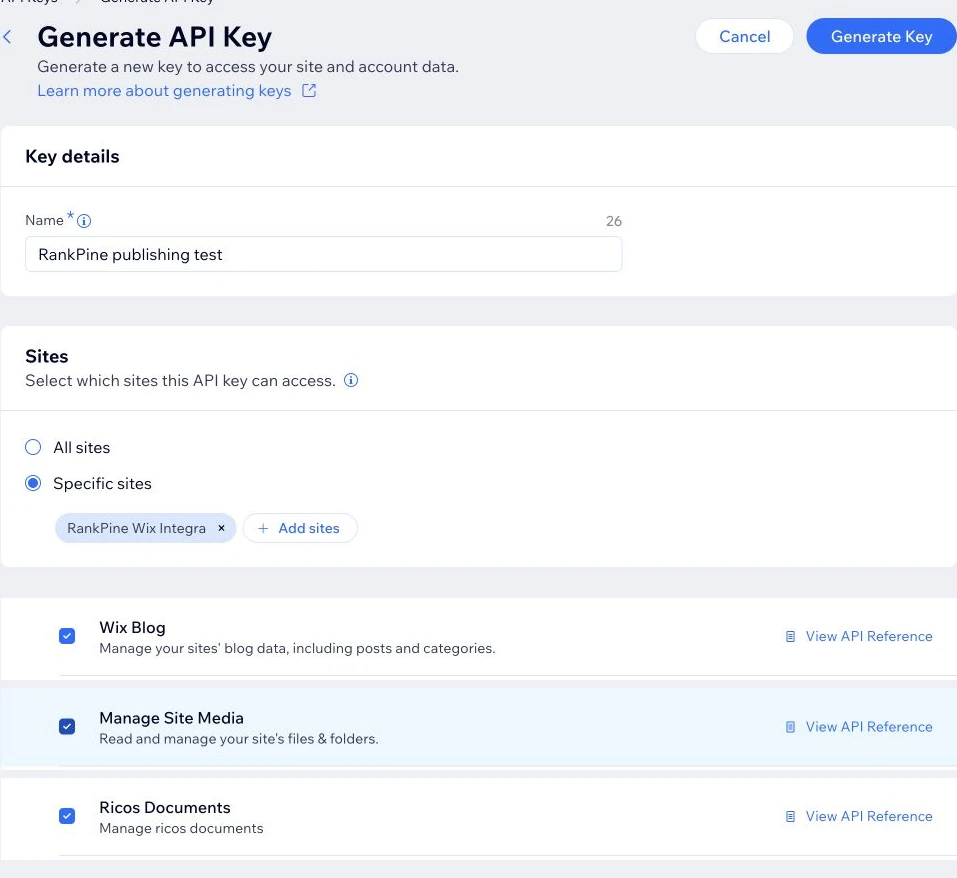
Only a Wix account owner or co-owner can create API keys. Use a dedicated key for RankPine and restrict it to the single Wix site you want to connect.
The key needs these permissions:
- Wix Blog — create, update, and publish draft posts;
- Ricos Documents — convert the article body to Wix Rich Content; and
- Manage Site Media — import article and featured images.
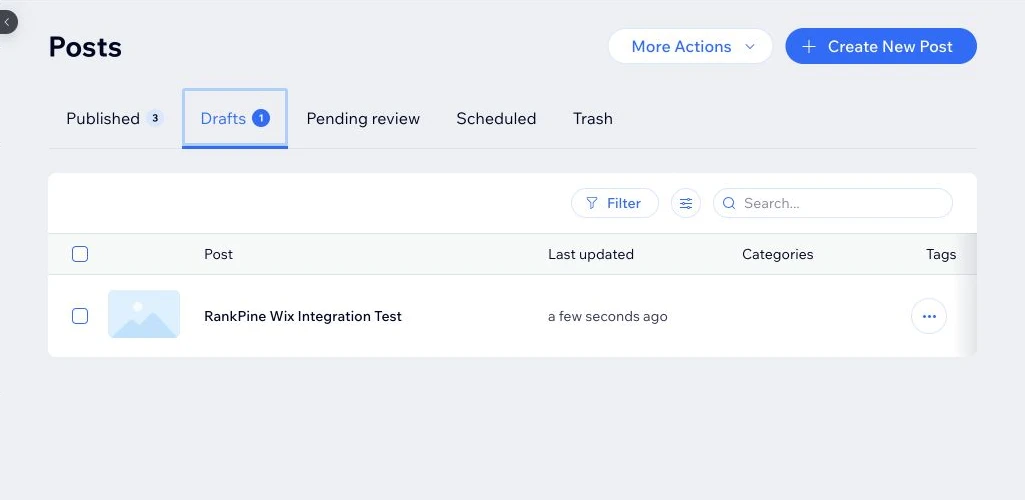
RankPine tests Blog, Ricos, and Media Manager access before it stores the key. It also discovers the Wix Blog author from an existing draft or published post so new posts have a valid owner. Wix normally creates starter posts when Blog is added; if you deleted every post, create one draft in Wix before connecting. The key is encrypted at rest and never returned to the browser after you connect.
Create the Wix API key
Open Wix API Keys Manager
Sign in to Wix and open API Keys Manager. Choose Generate API Key. If that action is unavailable, ask the account owner or co-owner to create the key.
Restrict access to this site
Give the key a recognizable name such as RankPine publishing. Under site access, choose Specific sites and select only the site you are connecting.
Add the three permissions
Add Wix Blog, Ricos Documents, and Manage Site Media. Generate the key and copy it immediately. Treat it like a password.
Find the Site ID
Open the target site in the Wix dashboard and look at the browser URL. The Site ID is the value immediately after /dashboard/:
https://manage.wix.com/dashboard/xxxxxxxx-xxxx-xxxx-xxxx-xxxxxxxxxxxx/...
                                 └──────────── Site ID ────────────┘
The Site ID is not the site's domain, display name, or Wix account ID.
Connect in RankPine
- Open the correct website in RankPine.
- Go to Settings → Integrations.
- On Wix Blog, choose Connect.
- Paste the Site ID and API key.
- Choose Publish immediately or Save as draft.
- Choose whether RankPine should import the article hero as the Wix featured image.
- Select Connect. RankPine tests all three Wix API surfaces before saving.
If the connection succeeds, future articles publish according to this site's autopilot settings.
What RankPine publishes
RankPine creates a Wix draft post with the article title, excerpt, SEO slug, language, meta description, native Ricos Rich Content, inline images, image alt text, and optional featured image. In live mode, it then calls Wix's separate publish operation.
When you update an article from RankPine, the recorded Wix draft ID is reused. The same Wix post is updated and republished instead of creating a duplicate.
Wix limits a draft post to 400KB, and the Ricos conversion endpoint limits its HTML input. RankPine checks both limits and stops the publish rather than silently dropping part of the article.
Test, reconnect, or disconnect
- Test checks the stored key against the configured Site ID.
- Reconnect replaces the API key and publishing defaults. The previous key is not shown back to you.
- Disconnect deletes the encrypted key from RankPine. Revoke the key in Wix as well if it is no longer used anywhere else.
Posts already published in Wix stay in Wix after disconnecting.
Troubleshooting
Wix rejected this API key
The key was copied incorrectly, revoked, or rotated. Generate a new Wix key and reconnect it in RankPine.
Wix denied this action
Confirm the key has all three required permissions and that its site access includes the exact Site ID entered in RankPine.
Wix could not find this site or Wix Blog
Check the Site ID, confirm the key belongs to the site owner's Wix account, and install Wix Blog on the target site.
Wix Blog needs an existing post
Create one draft or published post in Wix, then reconnect. RankPine reads that post's Wix member ID so future articles are assigned to a valid Blog author.
Image import failed
Confirm Manage Site Media remains enabled. Wix processes imports asynchronously; RankPine waits for the file to become ready and retries a temporary timeout through the publishing job.
The post stayed in draft
Open the Wix connection in RankPine and change Publish as to Publish immediately, then publish or update the article again.
For Wix's platform details, see API key authentication and the Wix Blog publishing flow.