
Products & services
Give RankPine accurate details about what you sell, sync your Shopify catalog, and choose products for each article.
Your library tells RankPine what your business offers. Add products, services, or booking pages with their real descriptions and URLs. RankPine uses these facts when an offering fits an article's topic and links readers to the relevant page.
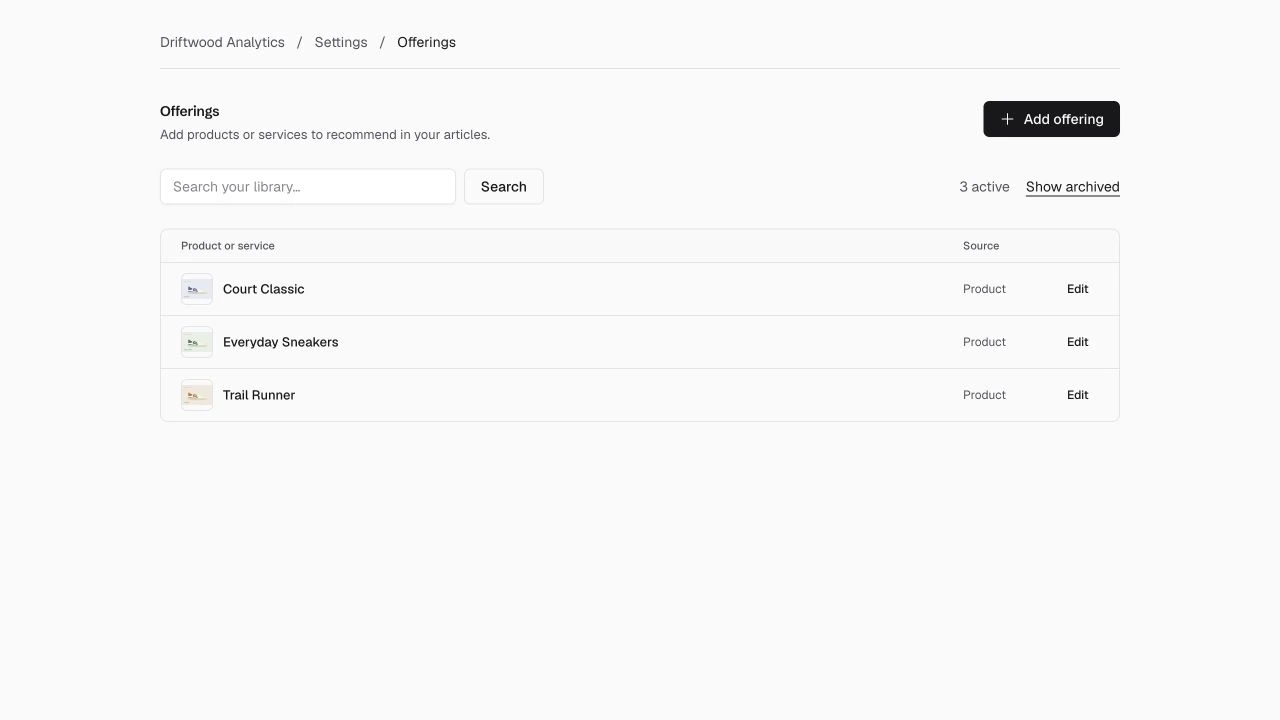
The screenshot uses fictional products from the Driftwood Analytics demo site.
Add an item
Open Settings → Offerings → Add offering. Enter its name, type, HTTPS URL, and factual description. Upload up to five JPG, PNG, or WebP images (5 MB each). Previews let you review and remove images before saving. Under Additional options, you can specify an audience and topics where the offering is useful. RankPine may choose a relevant photo beside a discussion; it does not generate a replica of your product from this photo. Removing a photo from an offering leaves images in existing articles intact.
Avoid temporary prices, stock promises, and claims you cannot substantiate. The library is context for writing, not a live price or inventory feed.
All active offerings are eligible for automatic selection when relevant to an article. Archive an item to exclude it from future articles without changing existing articles. Archived items can be restored.
Sync Shopify products
In the RankPine app inside Shopify Admin, open Settings → Offerings → Connect Shopify catalog. Shopify asks for optional product read access. Declining keeps the existing publishing integration working; you can still add items manually.
After permission is granted, RankPine imports active products that have a public Online Store URL. It imports names, descriptions, URLs, and available product images. Draft, archived, and unpublished products are excluded.
Sync runs in the background, refreshes roughly daily, and can be requested with Sync Shopify products. Stop daily sync stops future scheduled syncs and any current request; your imported library stays available. Sync again to resume.
Product details are read-only in RankPine. Edit them in Shopify, then sync. Your audience, relevance guidance, and archive choices survive syncs. Archive a synced item to exclude it in RankPine without changing Shopify. Products removed or unpublished in Shopify are archived after the next complete sync.
If a sync fails, products absent from its partial scan are not archived. Check product access in Shopify and retry. Removing product access or uninstalling the Shopify app prevents imported products from being selected for new articles.
The library supports up to 10,000 items per site. Contact support before importing a larger catalog.
Choose products for an article
Before an original article starts writing, open its Products & services control. In the Shopify app, use the link beside the article in Articles.
- Automatic: ordinary articles select up to two relevant offerings. Product roundups and buying guides can select up to ten, or the requested list size (for example, ten for “Top 10 sneakers”), capped at twenty. Instructional lists keep the smaller limit. Only matching offerings are included.
- Choose specific items: select up to twenty active offerings.
- None: supply no library items for this article. Your normal brand positioning still applies.
Save the selection before writing begins. The worker saves a snapshot of the selected facts so retries, rewrites, and translations use the same context. Changes to the library affect future articles, not articles already written.
The writer may omit an item that does not help the reader. Article selections show what was supplied for writing; they are not a count of published mentions or sales.
Access
Site owners, admins, and content members can manage library items and article choices. Only owners and admins can enable or stop Shopify catalog sync. Each website has its own library and selections.